For error analysis during restart, shutdown and login
display the status messages

If you want to see what Windows 10 is doing at startup, you should just activate this option for fun. So you can quickly find out what is happening. the operating system holds up for so long.

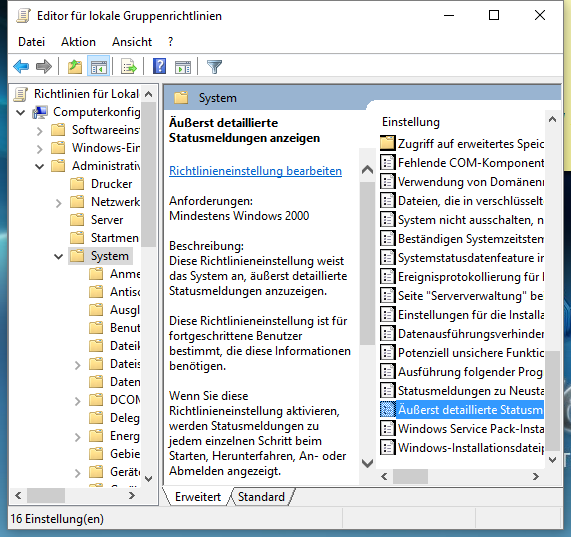
This tip is quick to implement. To display the status messages, open the Local Group Policy Editor (Windows key + r and type gpedit.msc). In the editor, navigate to Local Computer Policy > Administrative Templates > System > and in the right pane, select "Show highly detailed status messages".
There are three options: "Not Configured," "Enabled," and "Disabled." Here, we select " Enabled " and confirm everything with OK, or close the windows and restart Windows. Then, we'll see a text description of what Windows 10 is currently doing.
ck, 24.03.2016/XNUMX/XNUMX
| Transparency: | This article may contain affiliate links. These will take you directly to the provider. If you make a purchase through one of these links, we will receive a commission at no extra cost to you. These links help us to refinance the operation of win-tipps-tweaks.de. |
This tip comes from www.win-tipps-tweaks.de
© Copyright Michael Hille